 Cozy
Aesthetic Mac Desktop Widgets: Ideas and How to Add Them
Photos, little lists, clocks and calendars, drawn to feel at home on your desktop.
A photo on a shelf. A list on a little notepad. A clock that belongs on the wall. Aesthetic Mac desktop widgets feel most at home when you choose them with the wallpaper and leave a little space around them. Here’s how to add them, make them useful and find a matching Cozy theme.
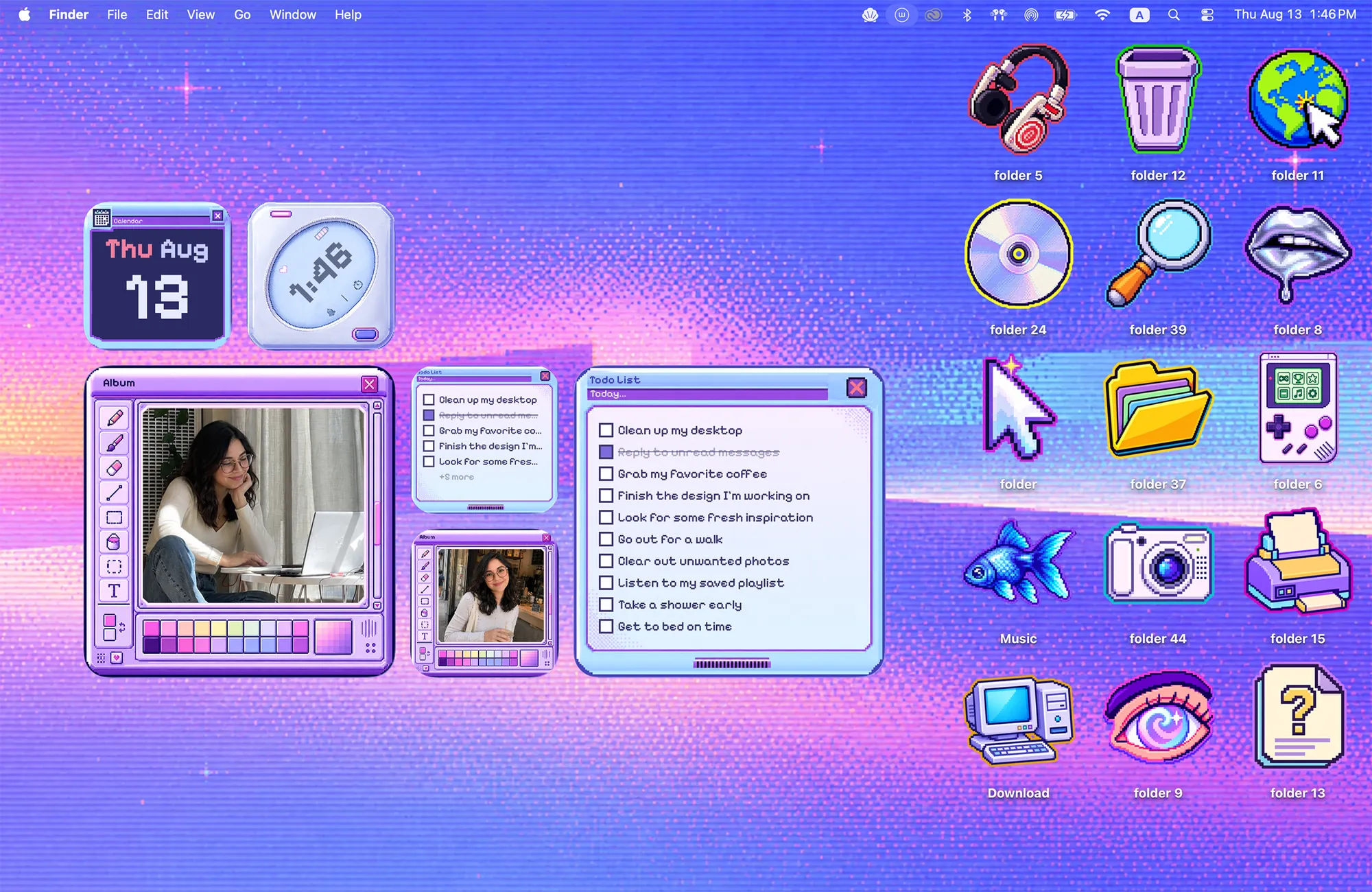
How to add widgets to your Mac desktop
Desktop widgets are available on macOS 14 or later. To add them:
- Control-click an empty spot on the desktop and choose Edit Widgets.
- Browse the widget gallery, or search for the app you want.
- Choose an available size and drag the widget onto your desktop.
- Click Done. Drag the widget again whenever you want to move it.
For Cozy widgets, install and open Cozy first, then search for Cozy in the gallery. Look for your theme’s name and the widget type: Album, Todo, Clock or Calendar.
Applying a Cozy theme changes the wallpaper and folder icons. Add its matching widgets separately through the macOS widget gallery. The widget themes below are included in the one-time unlock; Rainbow Felt is the free wallpaper-and-folders theme.
These are the system controls described in Apple’s widget guide. The photos and task lists inside Cozy widgets are customized in Cozy.
Make the widgets part of your day
A photo that feels personal
Choose an Album widget, then click the frame on your desktop to open Cozy’s album editor. Use Add Photos to bring in your own pictures. Click a thumbnail to adjust its crop, or drag thumbnails to change their order.
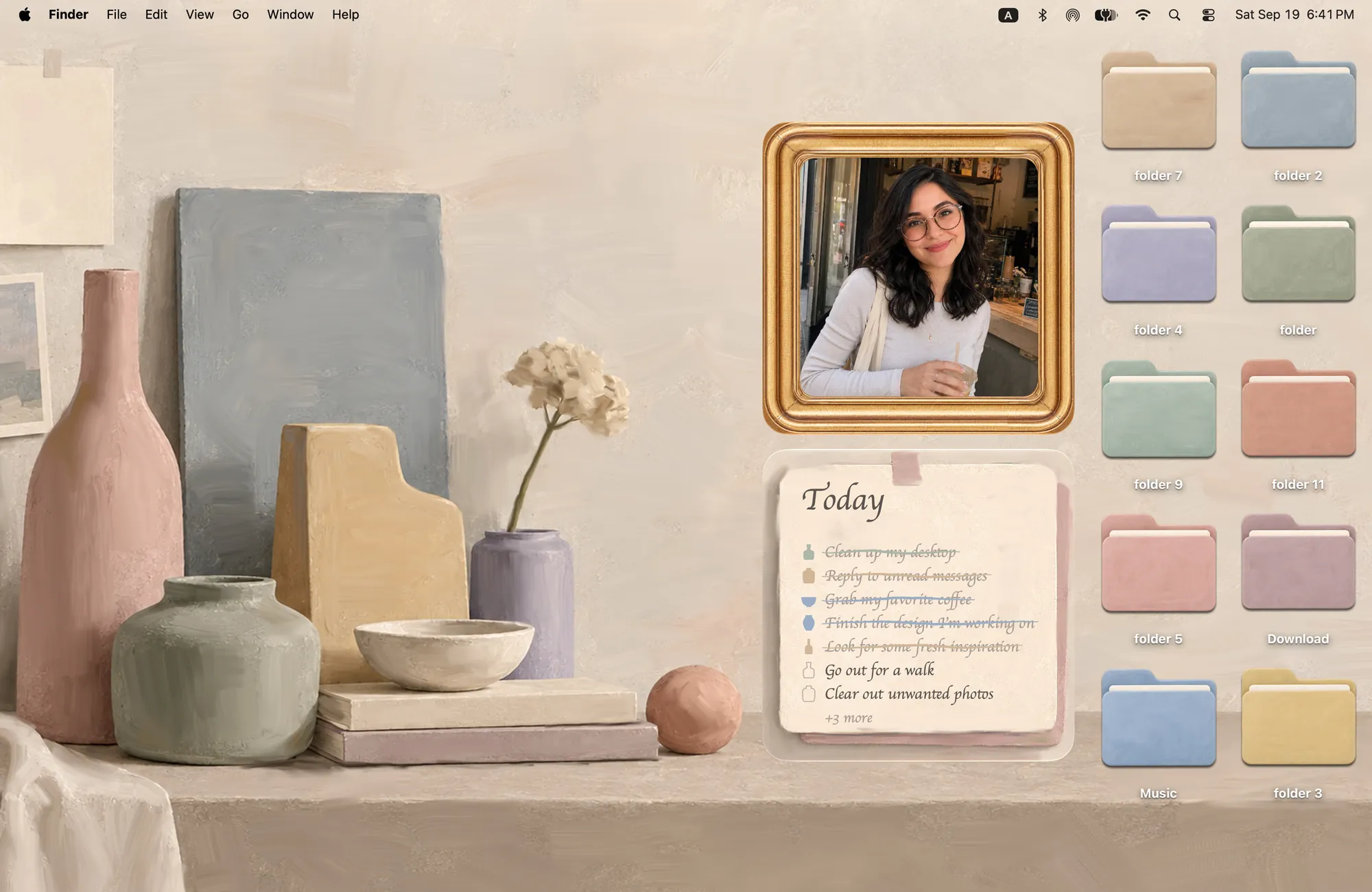
Y2K puts the photo in a little digital camera; Morandi gives it a painted gold frame. All Cozy Album widgets share one photo library. The photo widget tutorial covers the full setup.
A little list for today
Click a Todo widget to open its editor and add a task with a date or time. The desktop widget shows today’s tasks, so tomorrow’s plans can wait their turn. Check items off on the widget; use Clear Done in the editor when you want to tidy the list.
Try the notepad in Y2K, the paper note in Morandi or the pixel window in Cyber Dream. Put the list where it’s easy to glance at while you work.
A clock and a calendar that belong together
Warm Corner has two chalkboards for the time and date. Paper Village uses paper shapes, and Cyber Dream has pixel windows. Add the Clock and Calendar widgets separately, then place the pair in a clear part of the scene.
Start with the widgets you’ll actually look at. A photo and a list, or a clock and calendar, can be plenty.
Which Cozy themes include which widgets?
Pick a theme for the things you want nearby. “Album” is Cozy’s photo widget.
| Theme | Included widgets | The feeling |
|---|---|---|
| Y2K Aesthetic | Album, Todo | Glossy camera and notepad |
| Morandi | Album, Todo | Painted gold frame and paper note |
| Sunflowers in Shades | Album, Todo | Warm, painterly details |
| Cyber Dream | Album, Todo, Clock, Calendar | Violet pixel windows |
| Warm Corner | Clock, Calendar | Chalkboards in a little room |
| Paper Village | Clock, Calendar | Paper shapes in a tiny village |
| Curaçao | Album | Postcards and painted windows |
| Moving Day | Album | A personal photo for moving day |
Other Cozy themes focus on wallpaper and folder icons. For example, Candy Glass, Camp Kitties and The Fireside don’t include matching Cozy widgets. You can still add other macOS widgets beside them.
What about built-in and iPhone widgets?
macOS widgets are a useful starting point for things like weather and reminders. Cozy’s widgets add frames and artwork designed with a particular desktop scene. You can use both, and choose a layout that feels comfortable to you.
To use iPhone widgets, your iPhone needs iOS 17 or later, the same Apple Account, and to be nearby or on the same Wi-Fi network as your Mac. Enable Use iPhone widgets in System Settings > Desktop & Dock. See Apple’s requirements. Cozy’s Mac widgets don’t require an iPhone.
A little help with the finishing touches
- Your widgets didn’t appear after Apply: Add them separately through Edit Widgets.
- You can’t find a matching widget: Check the table above, and make sure you’ve opened the installed Cozy app.
- Your Album frame is empty: Click it to add photos. The photo library is shared across Cozy Album themes.
- A Todo item is missing: Check its date in the editor; the widget keeps today’s tasks in view.
- The desktop feels crowded: Keep your favorite pair of widgets, then move your folders into small groups.
For the rest of the desktop, follow our Mac desktop reset or browse cozy setup ideas.
FAQ
How do I add widgets to my Mac desktop?
On macOS 14 or later, Control-click the desktop, choose Edit Widgets and drag a widget from the gallery onto the desktop. Click Done when you’re finished.
Does Apply also add Cozy widgets?
No. Apply changes the wallpaper and folder icons together. Add the matching widgets separately through the macOS widget gallery.
Can I use my own photos?
Yes. Click a Cozy Album widget, then use Add Photos in its editor. All Cozy Album themes share the same photo library.
Do all Cozy themes include widgets?
No. Eight themes currently include matching Cozy widgets. Other themes focus on wallpaper and folder icons.
Are Cozy widgets free?
The matching widget themes are included in the one-time unlock. Rainbow Felt is the free theme and includes wallpaper and folder icons.
Do I need an iPhone for Cozy widgets?
No. Cozy’s widgets run on your Mac. iPhone widgets are a separate macOS option with their own requirements.
Get the whole look on your Mac
Cozy is free to try with Rainbow Felt. One purchase unlocks every theme, including new ones.

For Mac · macOS 14 or later