 Cozy
How to Add a Photo Widget to Your Mac Desktop
Your favorite faces and places, in a little frame that belongs on your desktop.
A photo widget puts a little piece of your life on your Mac desktop. With Cozy, it can live inside a retro digital camera, a painted gold frame or a tiny postcard. Add an Album widget from the macOS widget gallery, then click the frame to fill it with photos from your Mac.
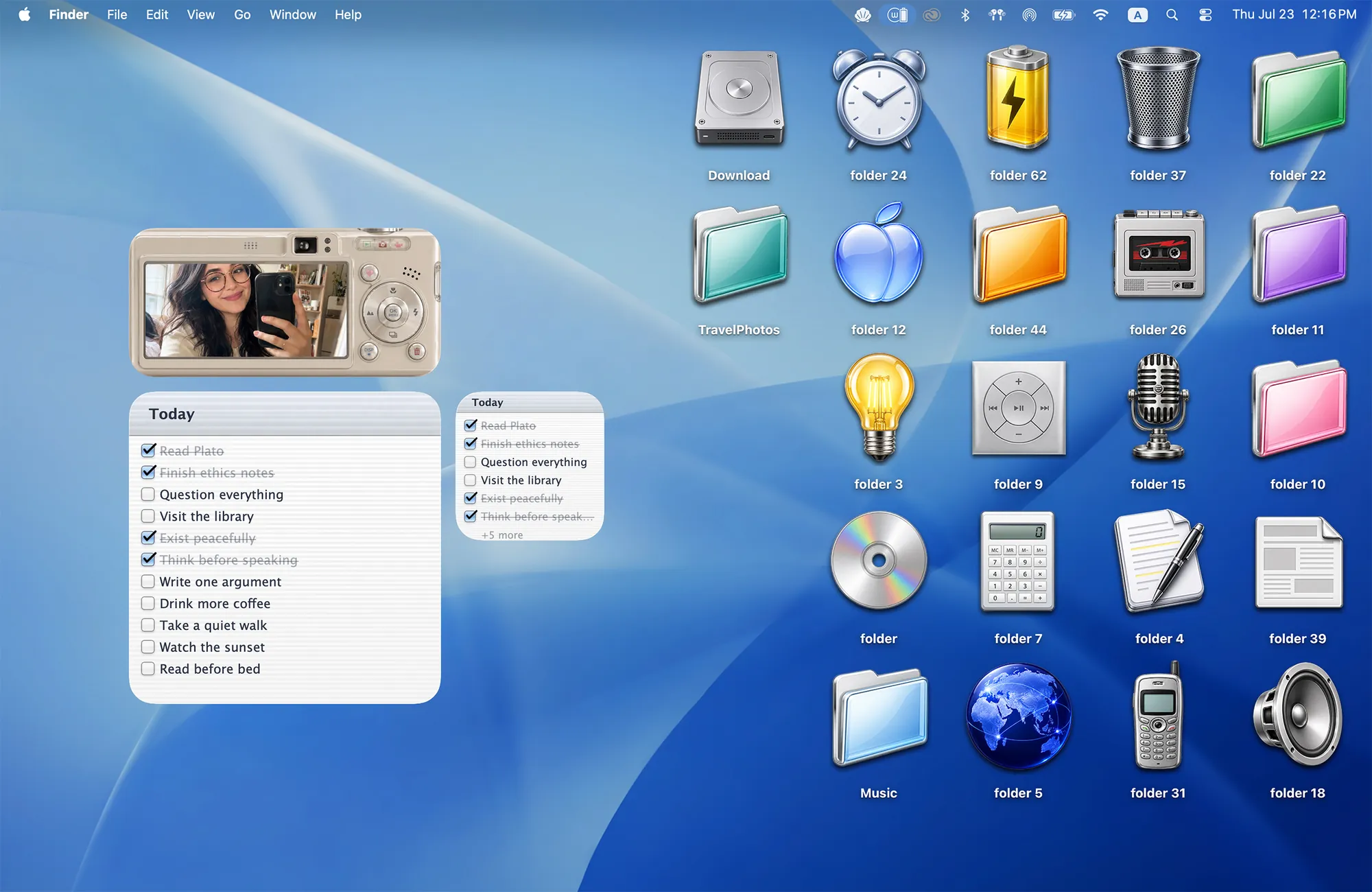
First, find a frame that feels like you
These three themes all have Album widgets. Each frame belongs to a complete scene, with a wallpaper and folder icons drawn in the same style.
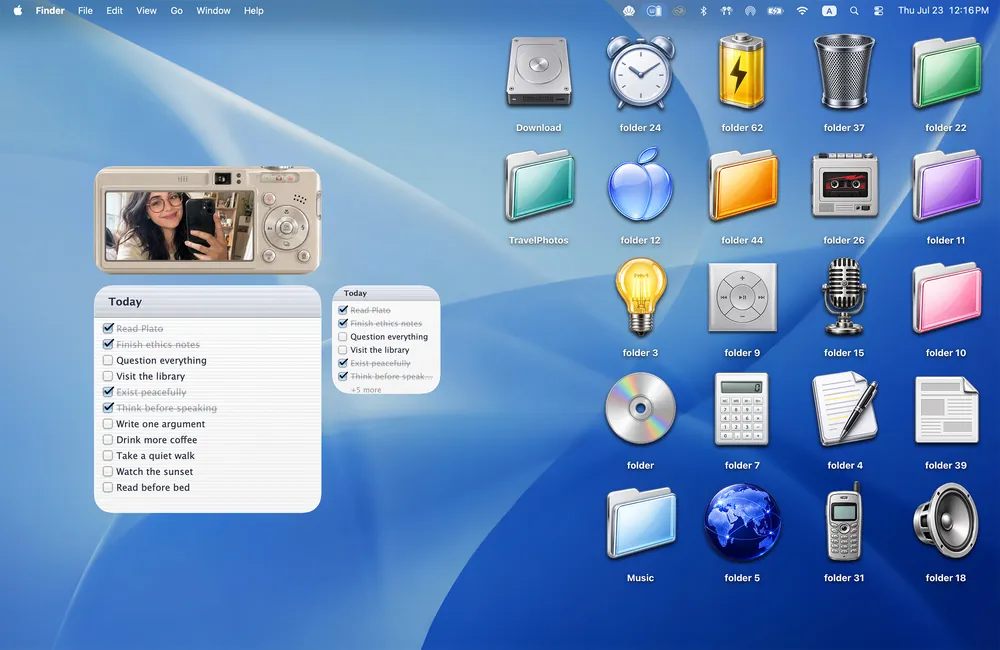 Y2K AestheticA little digicam for favorite faces and everyday memories.
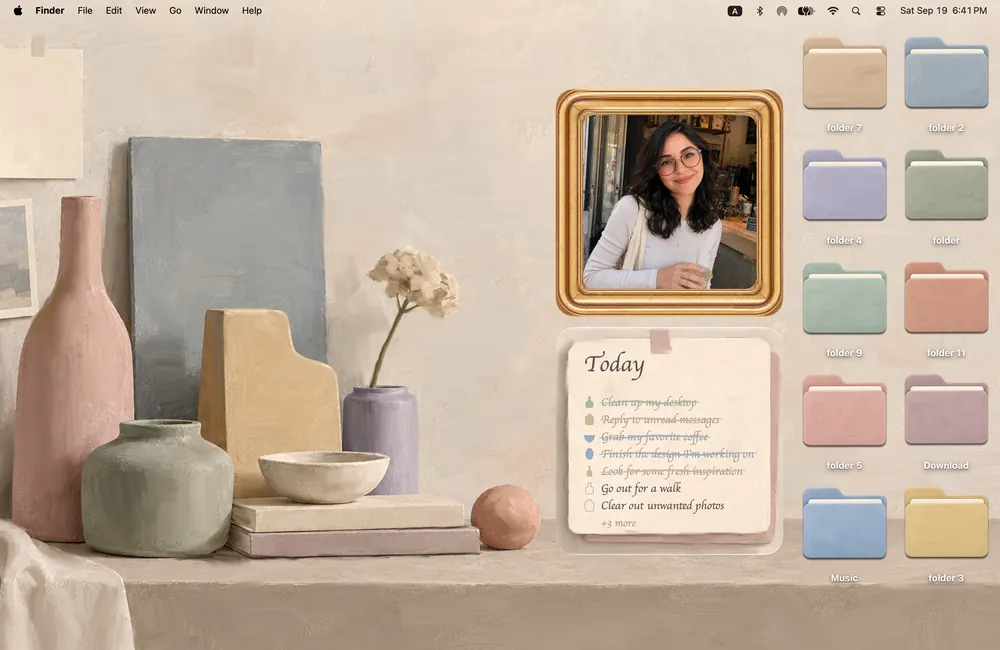 MorandiA painted gold frame for a softer, quieter desktop.
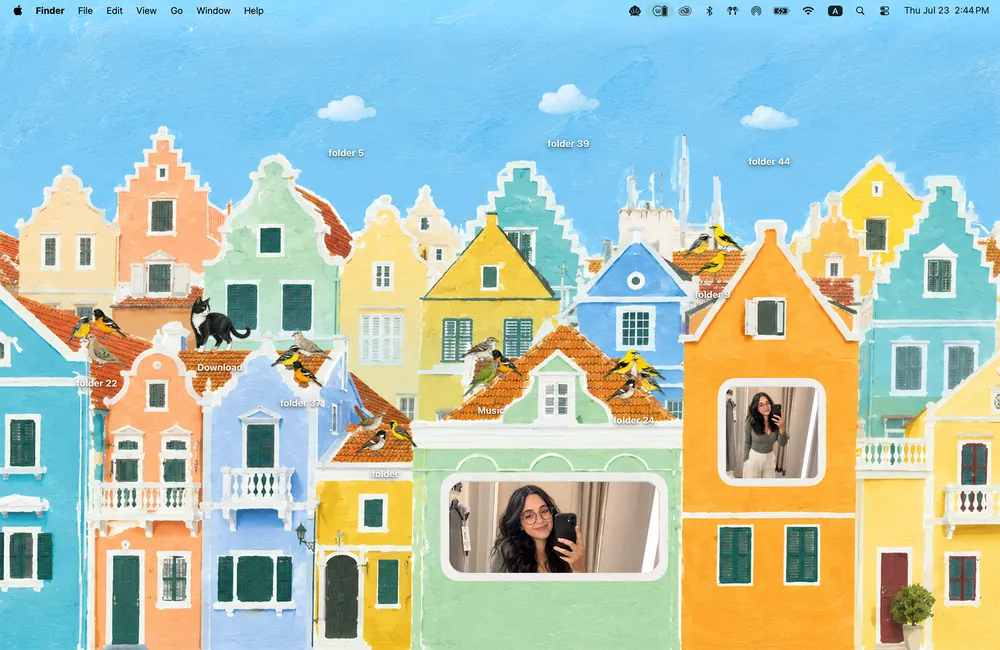 CuraçaoWindows and postcards for places you want to remember.
Before you begin: You’ll need macOS 14 or later and Cozy installed. Rainbow Felt is the free theme; the photo-widget themes shown here are included in the one-time unlock.
1. Add the Album widget to your desktop
Open Cozy once after installing it. If you want the whole scene, choose your theme and click Apply to change the wallpaper and folder icons. Add the matching widget separately:
- Control-click an empty spot on your desktop and choose Edit Widgets.
- Search for Cozy in the widget gallery.
- Find your theme’s Album widget. For the camera shown above, choose Y2K Aesthetic · Album.
- Drag it onto your desktop, then click Done. You can drag the frame again to find its spot.
The desktop widget controls are part of macOS. See Apple’s guide to adding widgets for the system steps.
2. Fill the frame with your photos
Click the Album widget on your desktop to open Cozy’s album editor. Click Add Photos at the bottom of the editor and choose images from your Mac. You can add up to 50.
Start with one photo if you want a single favorite on display. Add more for a rotating album, and drag the thumbnails to put them in the order you like.
All Cozy Album widgets share one photo library. Add your photos once, and they’re available across your Album themes. Reordering or removing photos changes that shared library too.
3. Make a little room for the part you love
Cozy fits each photo into the frame automatically. To adjust it, click its thumbnail in the album editor. Drag the image to reposition it, use the zoom slider to bring the subject closer, then click Done.
A face with some space around it works well in the camera’s wide screen. For a landscape, keep the detail you care about near the middle. Preview the crop in the frame before moving on to the next photo.
4. Let the frame become part of the scene
Keep a little breathing room around your photo. In Y2K, the camera can sit above the notepad widgets; in Morandi, the gold frame belongs on the painted shelf. Keep your most-used folders easy to reach beside it.
For more combinations, browse Mac desktop widget ideas try a warmer MacBook setup, or make room for your frame with a desktop reset.
A little help if something looks off
- Cozy isn’t in the gallery: Open the installed app, then close and reopen Edit Widgets. Check that your Mac is running macOS 14 or later.
- The frame shows an unlock prompt: The Album themes need the one-time unlock. If you already bought it, check your purchase in Cozy.
- The frame is empty: Click it and add photos in Cozy’s album editor. The wallpaper itself doesn’t choose your photos.
- A face is cut off: Click that photo’s thumbnail and adjust the crop.
- You added photos but the desktop hasn’t changed yet: Allow a little time for macOS to refresh the widget. If it stays unchanged, visit Cozy Support.
FAQ
Can I choose my own photo for the widget?
Yes. Click a Cozy Album widget on your desktop, then click Add Photos in the album editor and choose pictures from your Mac.
Can I show just one photo?
Yes. Keep one photo in the shared album for a single favorite. Add more photos for a rotating album.
Does each theme have a separate photo library?
No. Cozy Album widgets share one library. Adding, removing or reordering photos affects your other Album widgets too.
Are Cozy photo widgets free?
The photo-widget themes shown here are included in the one-time unlock. Cozy is free to download with the Rainbow Felt wallpaper and folder icons.
Which macOS version do I need?
Cozy and desktop widgets require macOS 14 or later.
Get the whole look on your Mac
Cozy is free to try with Rainbow Felt. One purchase unlocks every theme, including new ones.

For Mac · macOS 14 or later