 Cozy
A Mac Desktop Reset: A Fresh Start for Your Everyday Space
A gentle reset for your files, your wallpaper and the little things you keep nearby.
A Mac desktop reset is a small fresh start: put your files where you can find them, choose a wallpaper and folder icons that belong together, then leave room for a few useful widgets. Here’s a gentle way to work through it, whether it’s Sunday evening or the first day of a new month.
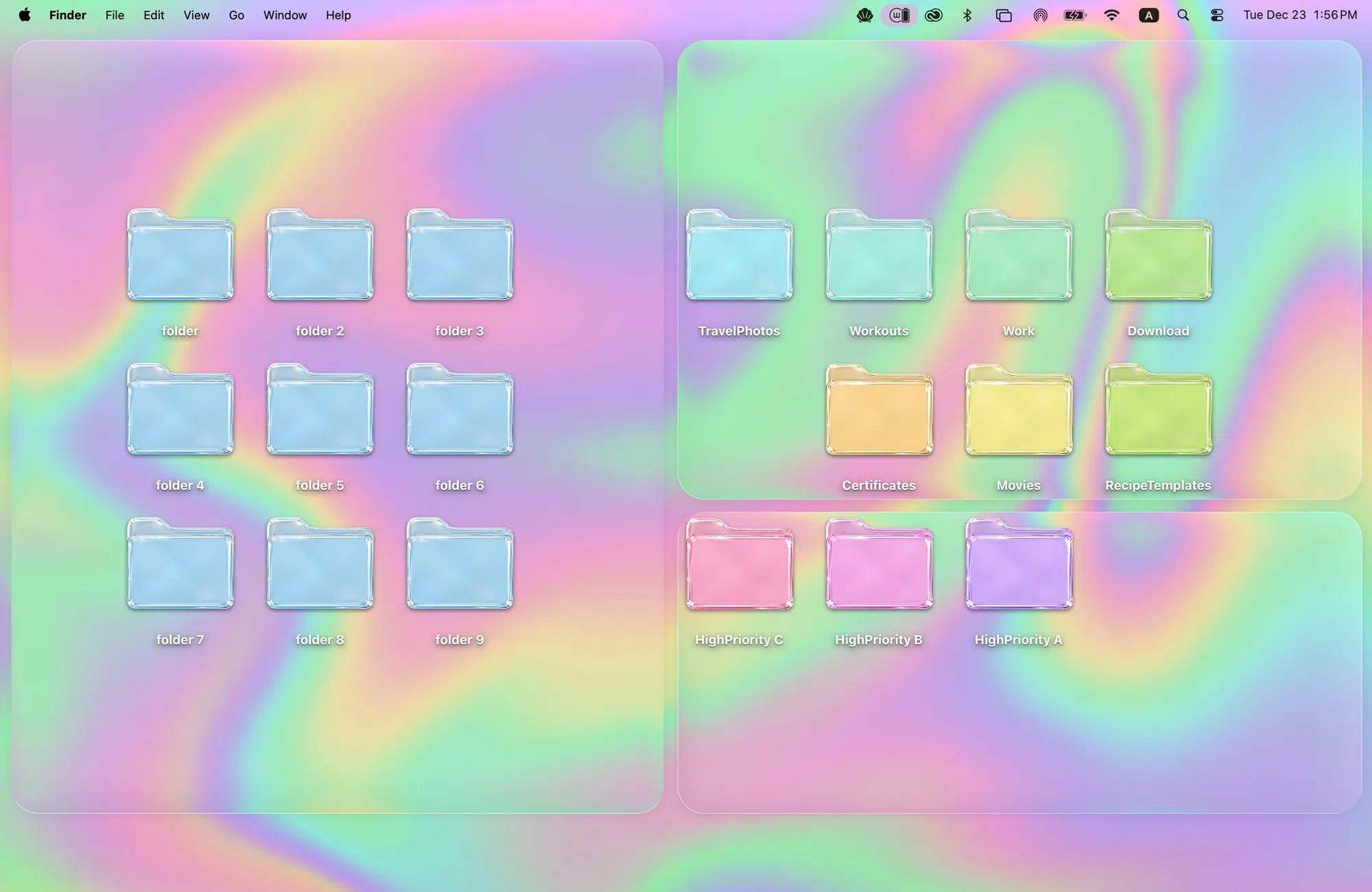
1. Take a look at what’s already there
Before moving anything, take a screenshot of your desktop. It gives you a little “before” to compare with later, and a reminder of where things were.
Look for the files you actually use: the project you’re working on, the screenshots you still need, the folder you open every morning. Those deserve the easiest spots to reach.
2. Give your files a few familiar homes
Create a handful of folders that make sense to you. For example:
- Working on: files for the projects you’re using right now.
- To sort: screenshots and downloads you still need to look through.
- Reference: things you want to keep nearby but don’t need every day.
Move files into those folders yourself in Finder. Choose names you’ll recognize next week, and keep each group small enough to browse. If you need the system steps, Apple explains how to organize files with folders.
Cozy changes how your desktop looks. Sorting, moving and naming your files is still up to you. You don’t need to delete anything to give the desktop a fresh start.
3. Choose how you want the space to feel
Pick a scene that leaves room for the folders you just organized. Here are three existing Cozy themes to start with.
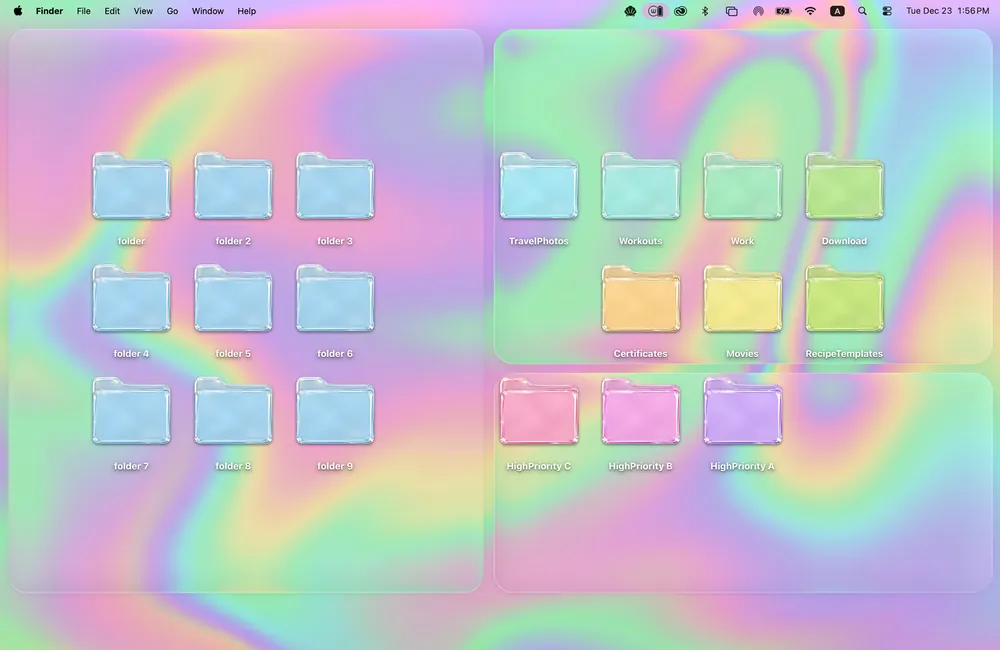 Candy GlassSoft color zones for small groups of folders. Wallpaper and icons.
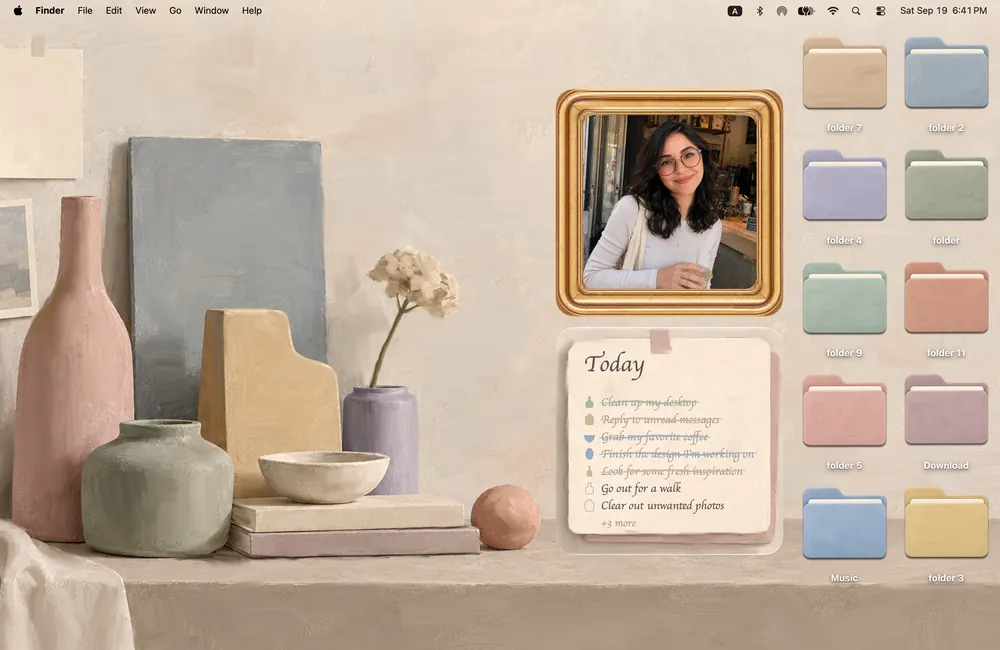 MorandiA quiet painted shelf, a personal photo and today’s list.
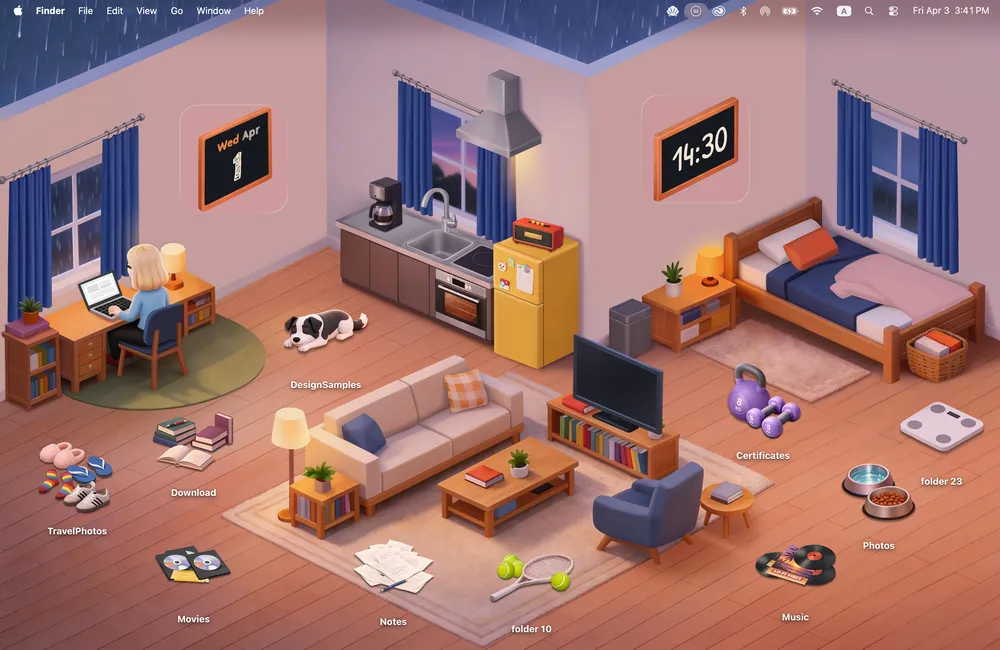 Warm CornerA little room with a matching clock and calendar.
If you want something warmer for autumn, explore the cozy MacBook setup ideas. To start for free, try Rainbow Felt; the three themes above are included in Cozy’s one-time unlock.
4. Match the wallpaper and folder icons
- Open Cozy on your Mac and choose your theme.
- Click Apply to change the wallpaper and folder icons together.
- Arrange your folders in small groups. Keep the ones you open most in an easy-to-reach spot.
In Candy Glass, try giving each group a different color zone. In Warm Corner, place folders like little objects around the room. Leave a clear patch of wallpaper between groups so you can see the scene.
For individual macOS settings, including wallpaper, folder icons and the Dock, use our MacBook customization guide.
5. Add only what you’ll enjoy using
One photo and today’s list may be enough. Or a clock and calendar. You can also keep the desktop to just wallpaper and folders.
For a theme with matching widgets, Control-click the desktop, choose Edit Widgets and search for Cozy. Add the widgets for your chosen theme, then drag them into place. They’re added separately from the wallpaper and folder icons.
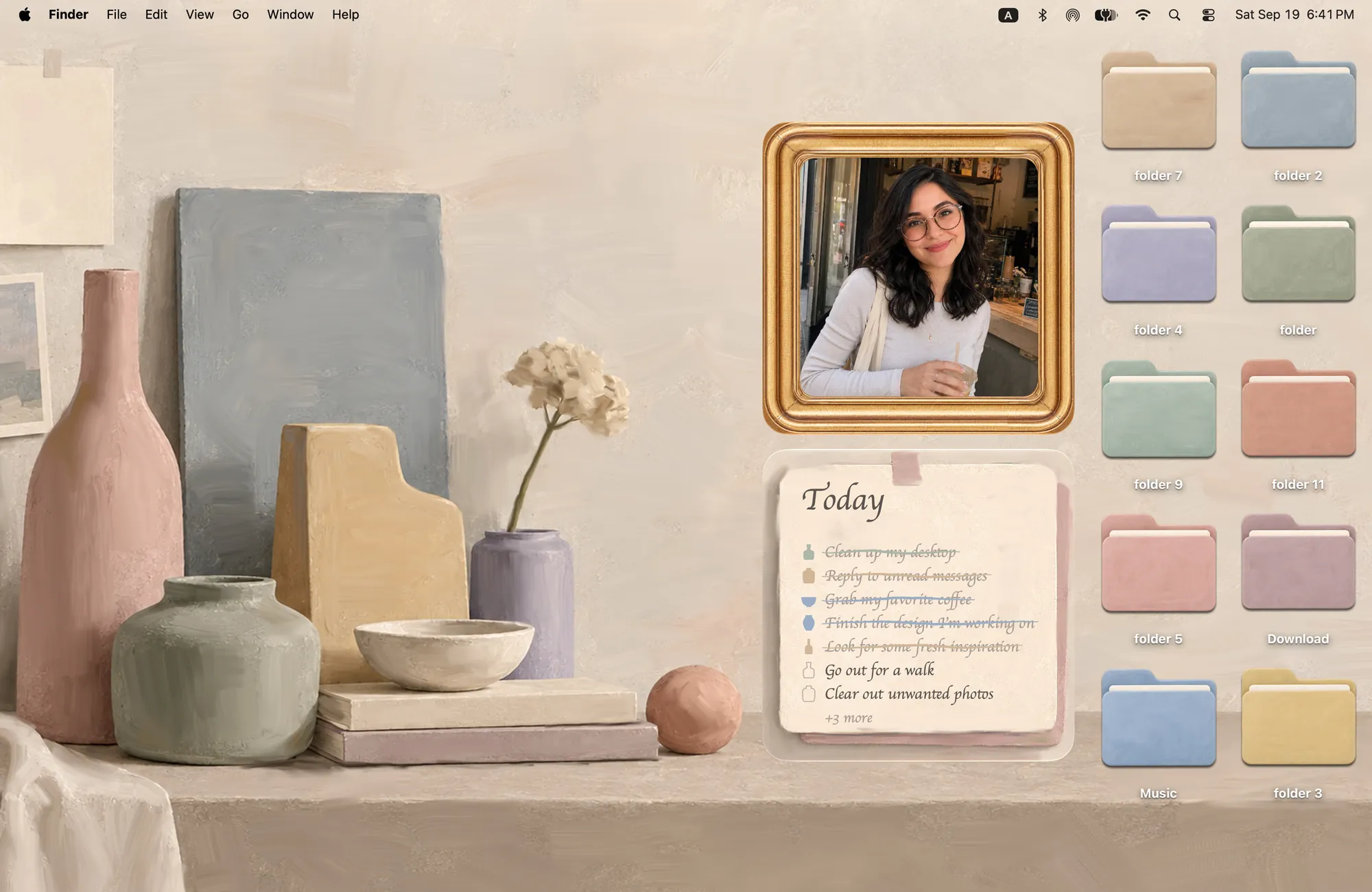
Morandi’s Album widget holds your photos, and its Todo widget keeps today’s tasks nearby. Follow the photo widget tutorial to add pictures, or use the theme widget guide to see which themes include photos, to-dos, clocks and calendars.
Candy Glass doesn’t include matching Cozy widgets. Its wallpaper and folder icons already make a complete look; you can add your own macOS widgets if you like.
6. Take your “after” screenshot
Compare it with the one you took at the start. Can you find the folder you use every day? Does the photo have some breathing room? Are the widgets helping, or just filling space?
Move one or two things if you need to. The finished desktop should feel easy to come back to.
7. Keep the reset small next time
- At the end of a work session, put new files in their project folders.
- When your “To sort” folder fills up, give it a little attention.
- For a new week or month, change a photo or tidy today’s list before changing the whole theme.
You don’t need a perfect empty screen. Just a desktop where your things have a place.
FAQ
Does a desktop reset delete my files?
No. This guide is about organizing files and changing the desktop’s appearance. You can complete it without deleting anything.
Does Cozy organize files automatically?
No. You sort, move and name your files in Finder. Cozy applies a matching wallpaper and folder icons; widgets are added separately.
Which theme can I try for free?
Rainbow Felt is free and includes a wallpaper with 20 matching folder icons. Candy Glass, Morandi and Warm Corner are included in the one-time unlock.
Do I need to add widgets?
No. A wallpaper and matching folders can be enough. Morandi includes Album and Todo widgets, Warm Corner includes Clock and Calendar widgets, and Candy Glass focuses on wallpaper and folder icons.
Get the whole look on your Mac
Cozy is free to try with Rainbow Felt. One purchase unlocks every theme, including new ones.

For Mac · macOS 14 or later