 Cozy
CozyHow to Customize Your MacBook Desktop
Wallpaper, folder icons, widgets, Dock and accent color: the five steps, and how to make them match.
To customize your MacBook desktop, change five things: the wallpaper, the folder icons, the widgets, the Dock and the accent color. You can do each one yourself in System Settings and Finder, which takes about half an hour. The hard part is making the five pieces match. This guide walks through each step, then shows the one-click way to do all of it at once.
1. Change your wallpaper
- Open System Settings and click Wallpaper.
- Pick one of Apple's wallpapers, or click Add Photo to use your own image.
- For a sharp result, use an image at least as big as your screen. See MacBook wallpaper sizes for every model.
2. Change your folder icons
Copy an image, select a folder, choose File > Get Info, click the small icon at the top of the window and paste. On macOS Tahoe 26 and later you can also give folders a color, an emoji or a symbol. The full walkthrough is in How to change folder icons on Mac.
3. Add desktop widgets
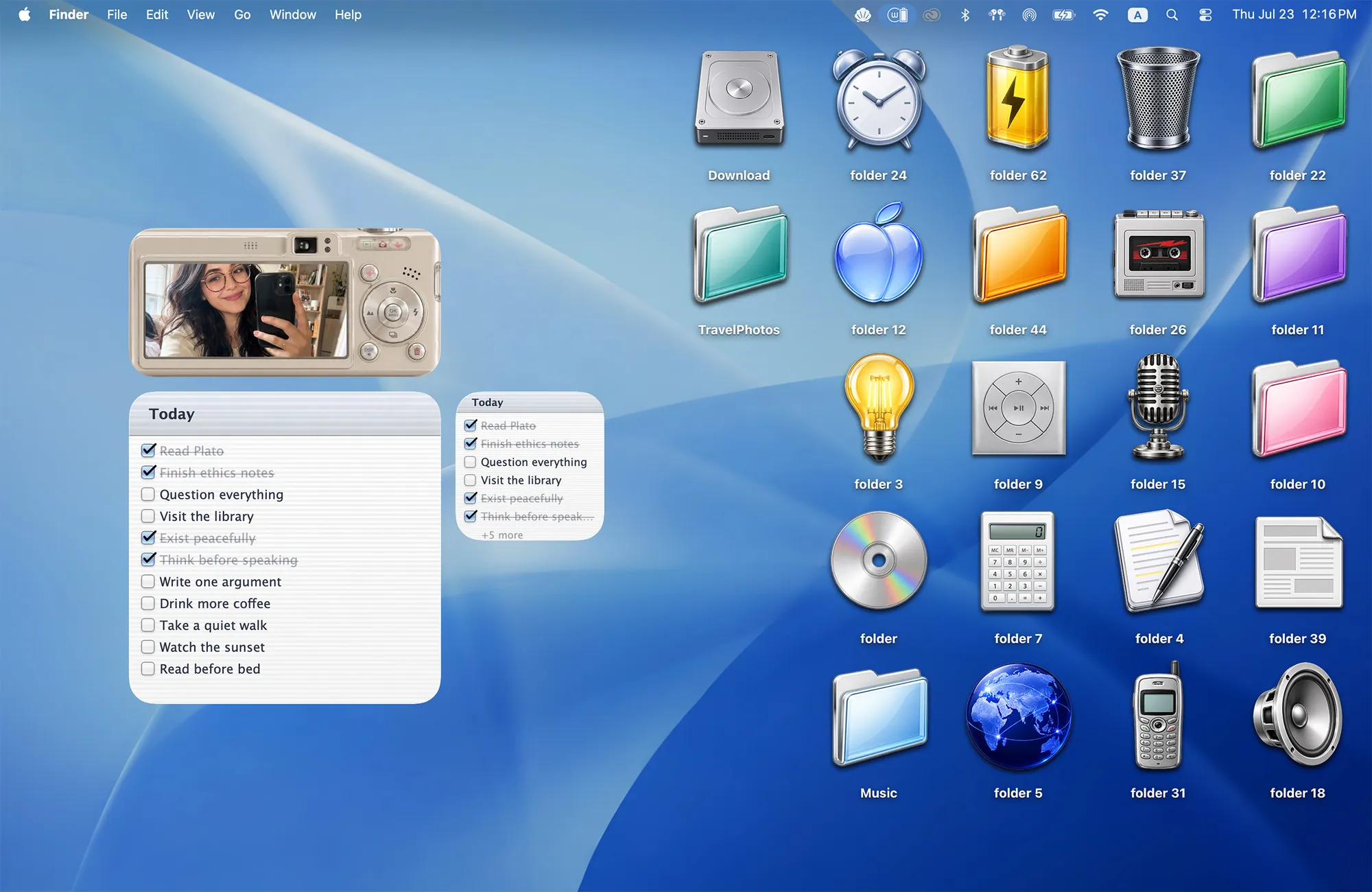
Control-click the desktop, choose Edit Widgets, and drag widgets onto your wallpaper. You can also use your iPhone widgets on your Mac. More ideas in Aesthetic Mac desktop widgets.
4. Tidy the Dock
- Drag apps you rarely use out of the Dock.
- In System Settings > Desktop & Dock, turn on Automatically hide and show the Dock for a cleaner screen.
- Turn off Show suggested and recent apps in Dock.
5. Pick an accent color
In System Settings > Appearance, choose an accent color that matches your wallpaper. Pink with a pink scene, green with a meadow. It changes buttons, checkboxes and selection color across macOS.
Why a customized desktop often still looks unfinished
After those five steps, many desktops still feel like a collage: a wallpaper from one artist, icons from another, widgets in the system style. Each piece is fine. They just were not made for each other.
The Cozy way: design the whole desktop as one space
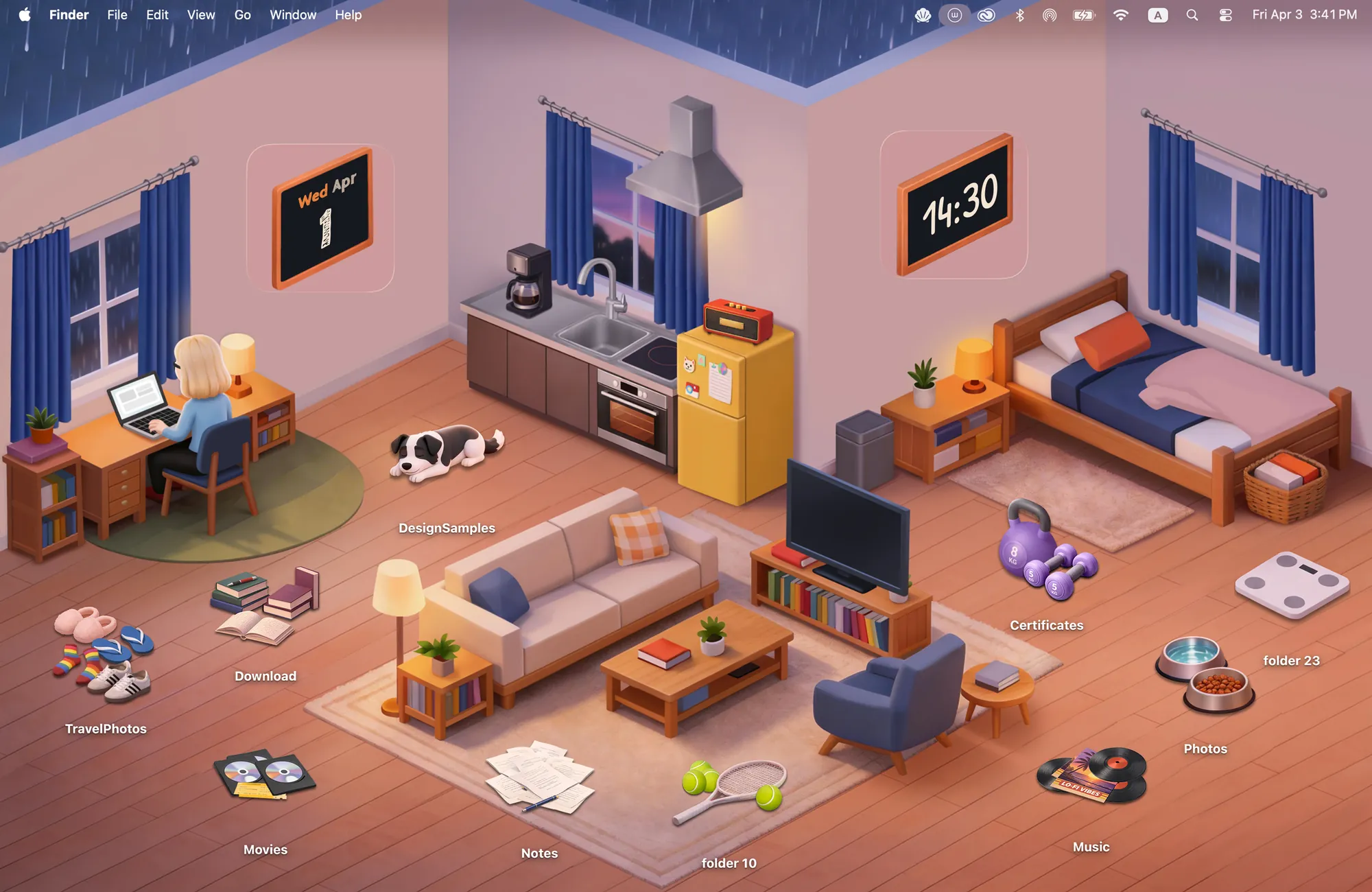
Cozy treats your MacBook as a digital space and designs it the way you would design a room. In every theme, the wallpaper and folder icons, plus widgets where the theme has them, are drawn together as one scene. In Warm Corner, for example, the folders are the furniture and the clock hangs on the wall.
| Step | By hand | With Cozy |
|---|---|---|
| Wallpaper | System Settings | Pick a theme, click Apply |
| Folder icons | Get Info, one folder at a time | |
| Widgets | Edit Widgets, system style | |
| Matching | Up to you | Drawn together |
Download Cozy from the Mac App Store. It is free to try with Rainbow Felt, and it works on MacBook Air, MacBook Pro, MacBook Neo and iMac.
FAQ
How do I customize my MacBook Air desktop?
The steps are the same on every MacBook: System Settings for wallpaper and Dock, Get Info for folder icons, and Edit Widgets for widgets.
Is there a faster way?
Yes. Cozy changes the wallpaper and folder icons together in one click, with matching widgets in many themes.
Get the whole look on your Mac
Cozy is free to try with Rainbow Felt. One purchase unlocks every theme, including new ones.
Download Cozy on the Mac App Store