 Cozy
CozyHow to Change Folder Icons on Mac (MacBook Air, Pro & Neo)
Paste any picture as a folder icon, change it back, and color folders in macOS Tahoe.
To change a folder icon on a Mac, copy an image, select the folder, choose File > Get Info, click the small icon at the top of the Info window and choose Edit > Paste. This works on every MacBook, including MacBook Air, MacBook Pro and MacBook Neo. Below are the exact steps, how to undo it, the newer folder colors in macOS Tahoe, and how to change many folders at once.
Change a folder icon to any picture
- Open the picture you want in Preview and choose Edit > Copy. (A PNG with a transparent background looks best.)
- In Finder, select the folder and choose File > Get Info, or press Command-I.
- Click the small icon at the top left of the Info window. It gets a highlight when selected. Do not click the large preview below it.
- Choose Edit > Paste, or press Command-V.
If Paste does nothing, you probably copied the file instead of the image. Open the image in Preview first and copy from there.
Change it back to the default icon
- Select the folder and choose File > Get Info.
- Click the small icon at the top of the Info window.
- Choose Edit > Cut. The standard blue folder comes back.
You cannot change icons of some system folders, such as Applications, Library, System and Users.
Folder colors, emoji and symbols in macOS Tahoe
On macOS Tahoe 26 and later, you can also tint a folder and put an emoji or a symbol on it without any image: Control-click the folder and choose Customize Folder. It is a quick way to color-code, though every folder still uses the same folder shape.
How to make cute folder icons on Mac
- Use one style for every icon: the same outline, colors and shading. Mixed styles are what make desktops look messy.
- Match the wallpaper. Take colors from the wallpaper so icons feel like part of the picture.
- Use a square image with a transparent background, at least 512 by 512 pixels.
Change many folder icons at once
Get Info works one folder at a time, so a full desktop means repeating those steps for every folder, and finding a matching set of images first.
The Cozy way: icons that belong to the wallpaper
Changing icons alone rarely looks right, because icons need to match the scene behind them. Cozy treats your MacBook as a digital space and designs each theme the way you would design a room: the wallpaper and folder icons, plus widgets where the theme has them, are drawn together as one scene. Apply a theme and the folders on your desktop change at once. In Wool Farm, the folders are 42 fruits, flowers and farm animals that sit in the garden where they were drawn.
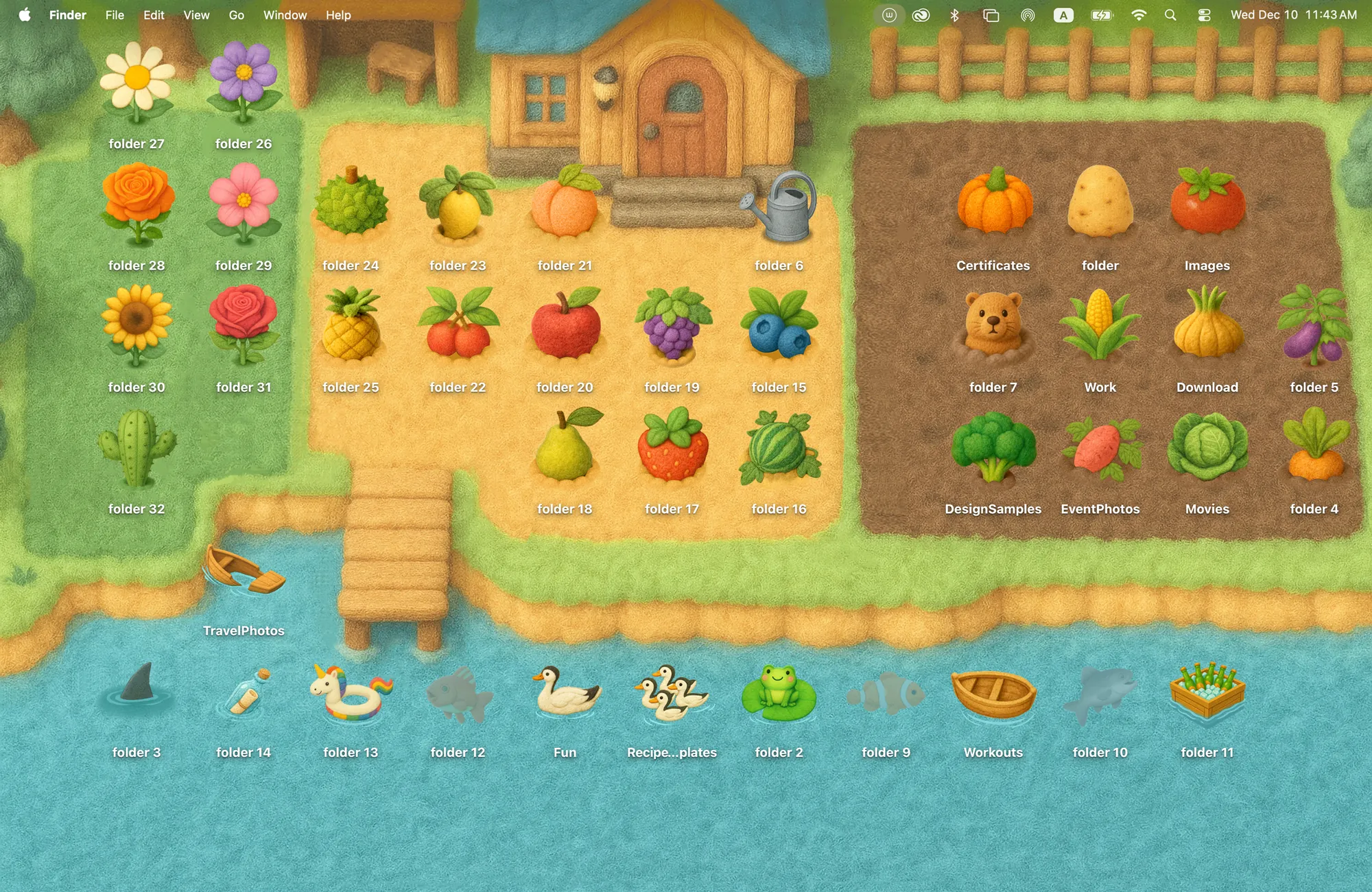
Your original icons are never lost: folder icons stay a standard macOS setting, and the Get Info steps above restore any folder.
Download Cozy from the Mac App Store and try it free with Rainbow Felt, a set of 20 felt folders in every color.
FAQ
How do I change a folder icon on a MacBook?
Copy an image, select the folder, choose File > Get Info, click the small icon at the top of the window and choose Edit > Paste.
How do I change a folder icon back?
Open Get Info, click the small icon at the top and choose Edit > Cut.
Why does Paste not work?
You probably copied the file instead of the image. Open the image in Preview, choose Edit > Copy, then paste.
Get the whole look on your Mac
Cozy is free to try with Rainbow Felt. One purchase unlocks every theme, including new ones.
Download Cozy on the Mac App Store