 Cozy
Mac photo widgets. A whole world around them.
Choose a Mac desktop photo frame that matches the rest of your space: a retro camera, a painted gold frame or a sunlit postcard.
A photo widget can be the most personal part of your Mac desktop. In Cozy, its frame belongs to a wider design: the wallpaper sets the scene and the folder icons share its style. Choose a frame you love, then let the rest of the desktop grow around it.
Which Mac photo widget frame suits your photos?
All three themes include an Album widget for your own images, plus a matching wallpaper and folder icons. Choose the surroundings as well as the frame.
Swipe across the table to compare every detail.
| Theme | Photo frame | The rest of the desktop | Other widgets |
|---|---|---|---|
| Y2K Aesthetic | Retro digital camera | Blue wallpaper, 22 glossy icons | Todo |
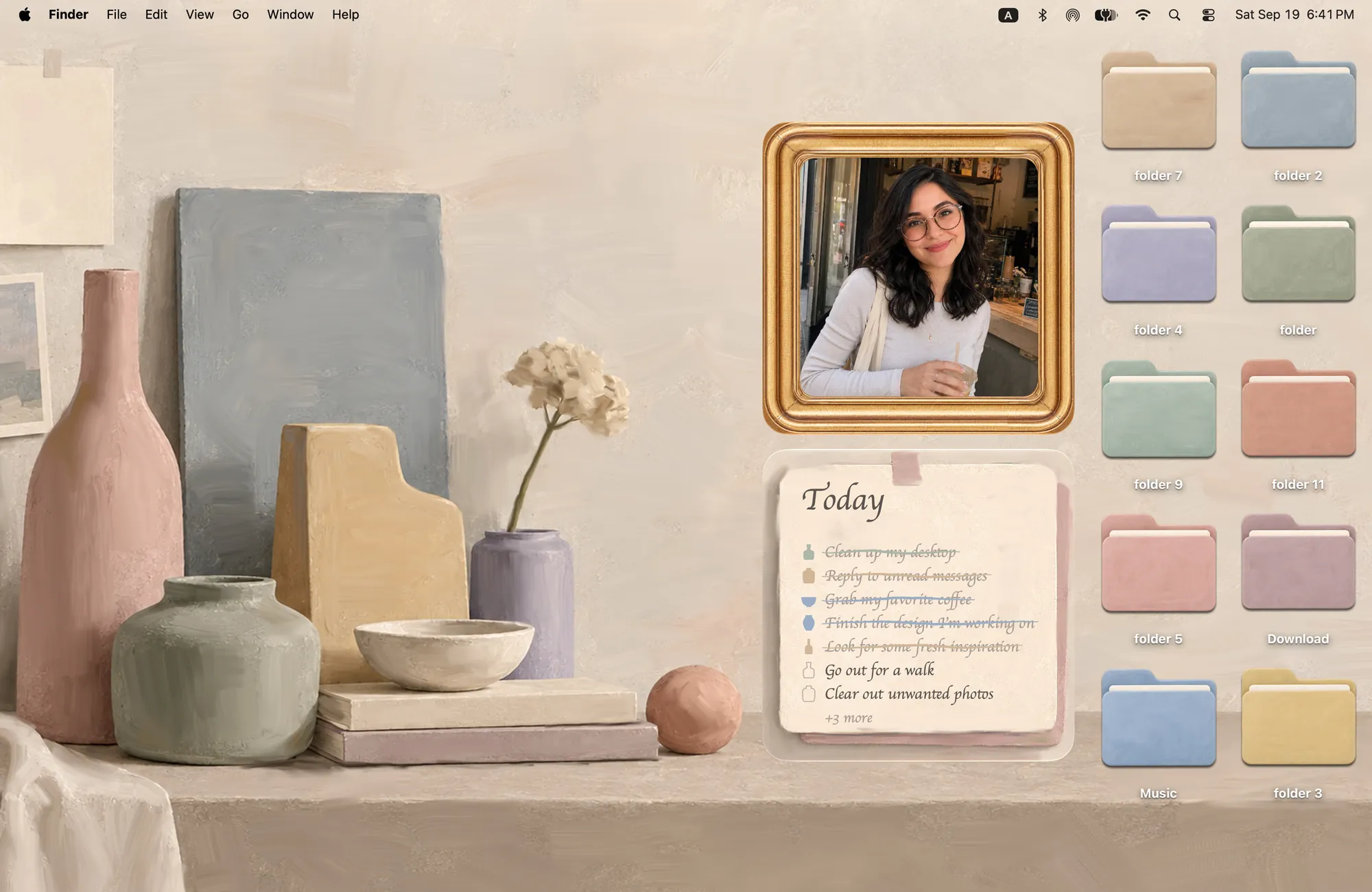
| Morandi | Painted gold frame | Muted wallpaper, 10 folder icons | Todo |
| Curaçao | Postcard and window frames | Colorful streets, 10 illustrated icons | None |
Y2K Aesthetic: everyday memories in a digicam
The camera frame is a natural fit for photos of friends, little outings and everyday moments. Its silver body belongs beside the theme’s glossy folders and music gadgets. The blue wallpaper leaves the photo as a warm, personal detail within the cooler scene.
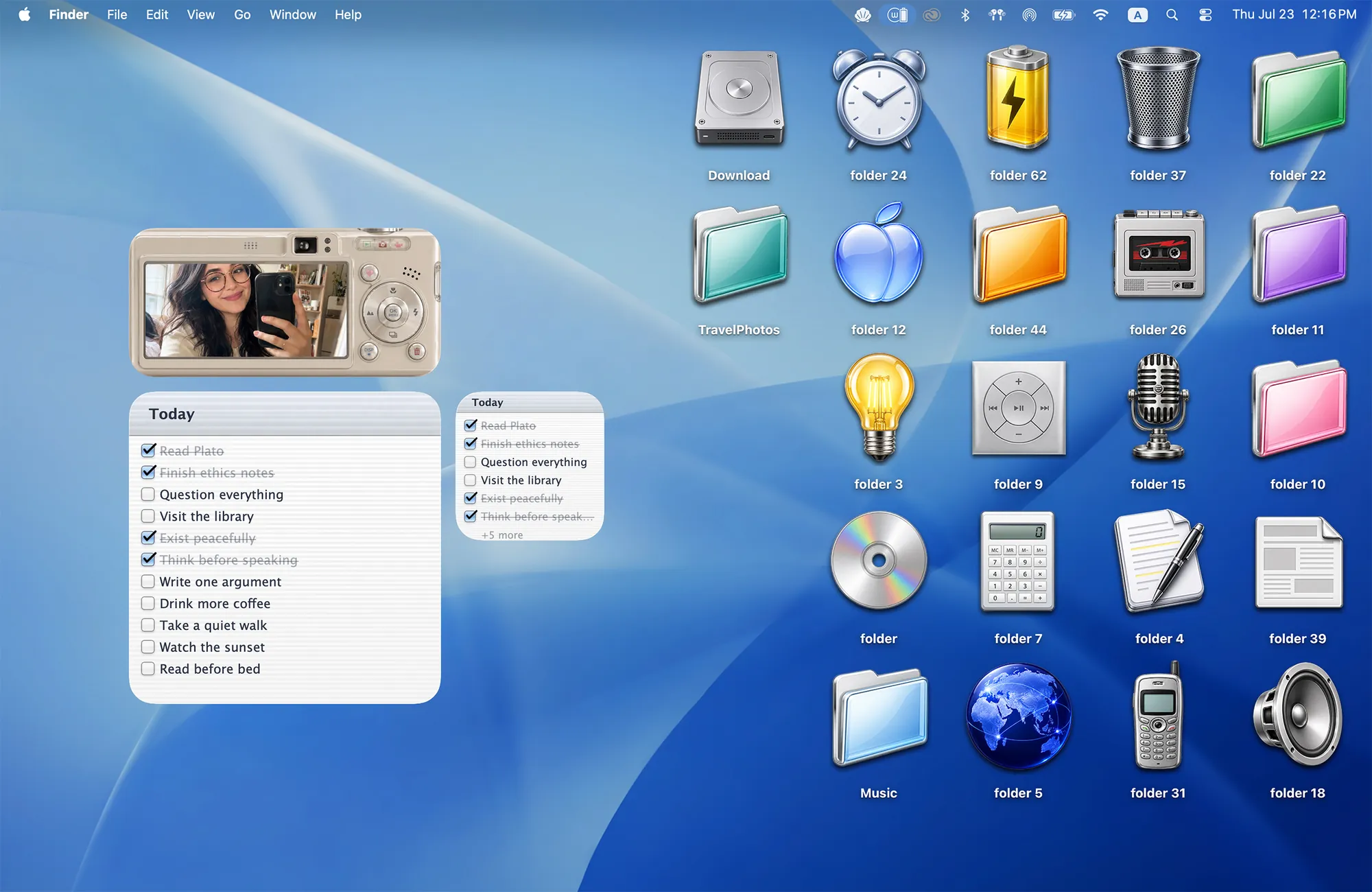
Try placing the camera above the matching Todo widget, with a few folder icons alongside. A photo with some space around the subject gives you room to adjust the crop inside the camera screen.
Choose it if: you love early digital cameras and want the whole desktop to share that nostalgic feeling. See more looks in the retro Mac theme collection.
Morandi: a photo on your own painted shelf
Morandi’s gold frame and muted colors make a quieter setting. Instead of looking like an extra panel placed on top of the wallpaper, the frame can sit within the illustrated shelf scene.
Soft portraits, a pet or a favorite landscape can all work here. The theme includes 10 matching folder icons and a Todo widget, so the useful parts of the desktop can stay within the same palette.
Choose it if: you prefer a calm, art-inspired desktop and want your photo to feel like a small framed print. The full Morandi preview at the top shows how those pieces work together.
Curaçao: a place to keep your favorite places
Curaçao gives your photos postcard and window frames in a colorful island setting. Its matching folder icons include songbirds, clouds and a cat. The frame, streets and small creatures make the desktop feel like a place you could visit.
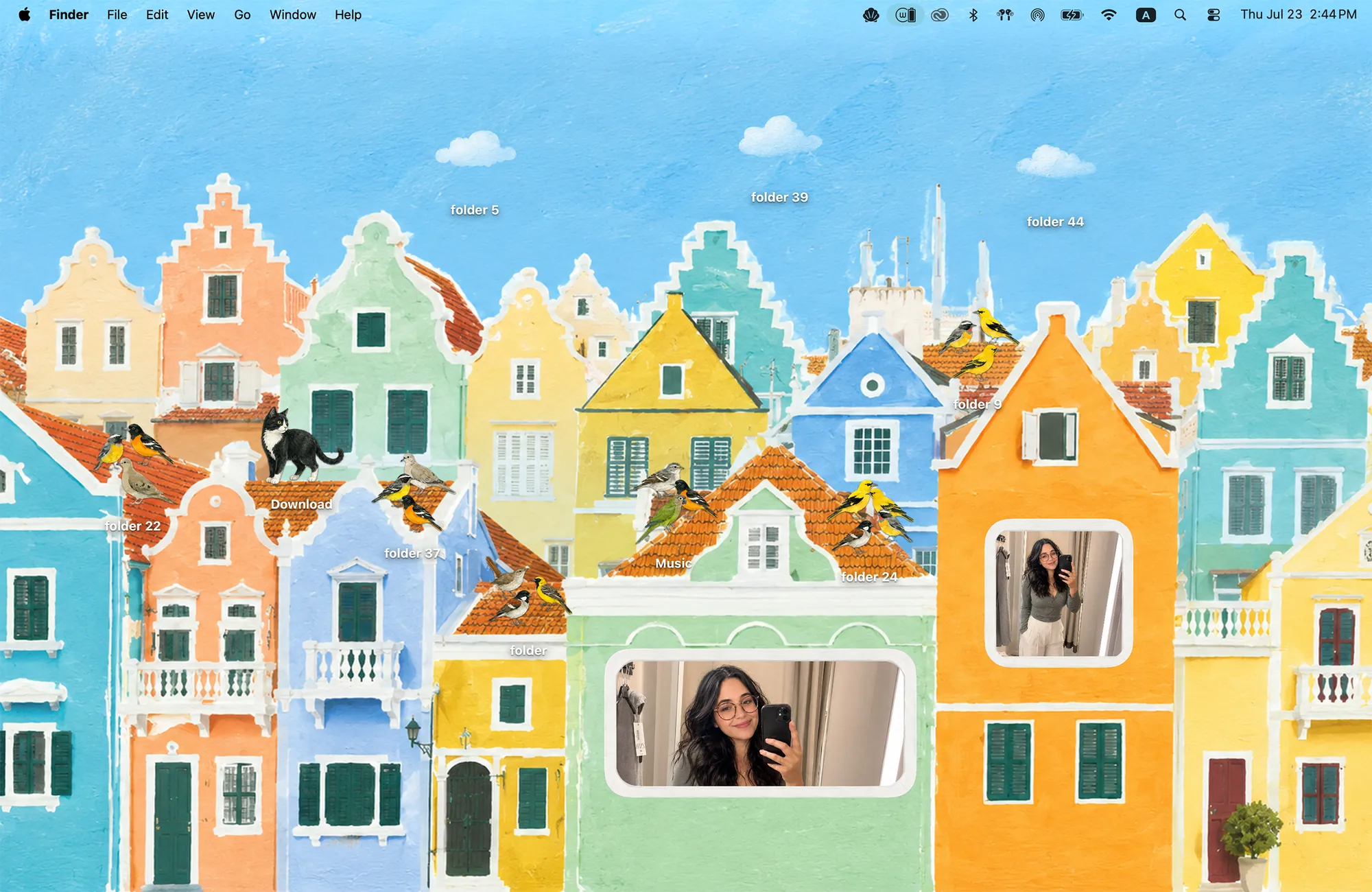
Travel photos are an obvious starting point, but a familiar neighborhood or a favorite person can feel just as at home. Try a landscape in the wider frame and adjust the crop so the detail you care about stays visible.
Choose it if: you want a sunny, illustrated setting around your memories. Curaçao includes Album widgets, without a matching Todo, Clock or Calendar widget.
Your photos, inside the theme
These Album themes require Cozy’s one-time unlock and macOS 14 or later. Apply the theme’s wallpaper and folder icons in Cozy, then add its Album widget separately through macOS Edit Widgets.
Click the widget to open the album editor. Add one image for a single favorite, or several for a rotating album. You can add up to 50 photos, change their order and adjust each crop.
One shared album: Cozy Album widgets currently use the same photo library. Switching the frame’s theme does not create a separate album; adding, removing or reordering photos changes the shared library.
For the exact steps and troubleshooting, follow how to add a photo widget on Mac. If you are still choosing the overall look, browse our matching desktop theme collection.
FAQ
Can I choose my own photo for a Mac desktop widget?
Yes. In Cozy, click an Album widget to open the album editor and add images from your Mac. Use one photo for a single favorite or multiple photos for a rotating album. Album themes require the one-time unlock.
Which Cozy photo frame should I choose?
Choose Y2K Aesthetic for a retro camera, Morandi for a painted gold frame, or Curaçao for postcard and window frames. Each belongs to a matching wallpaper and folder-icon theme.
Can each themed widget have a separate photo collection?
Cozy Album widgets currently share one photo library. Adding, removing or reordering photos affects that shared library across Album themes.
Do I need to set my photo as the wallpaper?
No. Your personal photos appear in the Album widget, while the illustrated theme remains your desktop wallpaper. Add the widget separately using macOS Edit Widgets.
Get the whole look on your Mac
Cozy is free to try with Rainbow Felt. One purchase unlocks every theme, including new ones.

For Mac · macOS 14 or later